Average Calculator with Weighting: Calculate Simple & Weighted Average Instantly
Need to calculate a weighted average or just find a simple mean? This average calculator with weighting handles both. Enter your values, add weights if needed, and get your result in one click.
You already know what an average is. Add all the numbers and divide by how many there are. But what happens when not every number carries the same importance? That is where calculating weighted average comes in. This tool handles both cases.
What is a Simple Average?
Simple average is the most basic type of average. You add all the values together and divide by the total count of values.
Formula:
Every value here carries equal importance. If you scored 70, 80, and 90 in three tests, each score matters the same. Your average is 80.
What is a Weighted Average? (And How is Weighted Average Calculated?)
Weighted average is a smarter version of average. Not every value carries equal weight here.
Suppose your final exam is worth 50% of your grade. Your midterm is worth 30%. And your assignment is worth 20%. If you treat all three equally, your result will be wrong.
Formula:
Weighted average gives more importance to values that matter more. That is the real difference between simple and weighted average.
Example:
Meet Rahul. He is a 2nd year engineering student. His semester has four subjects and each subject has a different credit score.
Subject
Marks
Credits
Physics
78
4
Maths
85
4
Chemistry
72
3
English
90
2
He cannot simply add 78 + 85 + 72 + 90 and divide by 4. That gives him 81.25, which is not his real semester average.
He needs weighted average. He enters each mark and its credit in our tool. Click calculate. His actual weighted average comes out as 80.31.
This is how weighted average is calculated when values have different levels of importance. Our average calculator with weighting does this automatically. You do not need to multiply and divide manually every time.
How to Use Simple Average Calculator
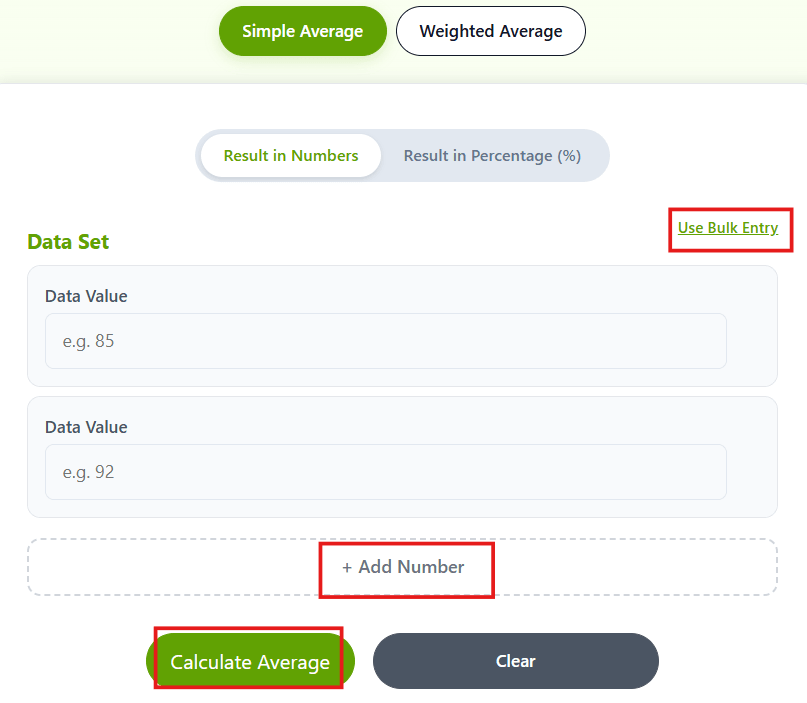
Enter your values in the boxes one by one. You can also switch to Bulk Entry mode and paste all numbers together separated by commas. Then click Calculate and your result appears instantly.
You also get extra details like median value, highest and lowest number, and total sum. Everything in one place.
If you want the result in percentage, just switch the toggle at the top to “Result in Percentage (%)”. You will also see a grade badge like A, B, or C based on your score.
How it Works: For weighted average, it multiplies each value by its weight, adds all those products, and divides by the total weight.
How to Use Our Average Calculator with Weighting: Step by Step
Click on the Weighted Average tab at the top. Enter your data value in the first box and its weight in the second box. Add more rows by clicking “+ Add Number & Weight”. Once all entries are filled, click Calculate.
Your weighted average appears instantly. You also see the sum of all weights and the sum of all value × weight products, so you can cross-check the calculation yourself.
How it Works: For simple average, it adds all your entered values and divides by the count. For weighted average, it multiplies each value by its weight, adds all those products, and divides by the total weight.
This is also how teachers and professors calculate weighted average for grades. Each assessment carries a different weight and the final result reflects that. Our weighted average calculator for grades works the same way.
Simple Average vs Weighted Average: Which One Should You Use?
Use simple average: When all your values have equal importance. Like finding your average marks across tests that all carry the same marks.
Use weighted average: When values have different levels of importance.
One thing students often ask is: how do I calculate a weighted average in Excel? The formula is SUMPRODUCT(values, weights) / SUM(weights). Our tool does the exact same calculation without any spreadsheet setup. Just enter your numbers directly.
Frequently Asked Questions
What is the difference between average and weighted average?
In a regular average, every value has equal importance. In a weighted average, some values matter more than others based on their assigned weight.
Can I calculate percentage average with this tool?
Yes, Switch the toggle to “Result in Percentage (%)” before calculating. You will also get a grade badge based on your result.
What is Bulk Entry mode?
Bulk Entry mode lets you paste multiple numbers at once instead of entering them one by one. Just separate your numbers with commas, spaces, or a new line and the tool will read all of them together.
What does the grade badge mean?
The grade badge appears only when you use the percentage mode. It gives you a quick letter grade based on your average. 90 and above is A, 80 to 89 is B, 70 to 79 is C, 60 to 69 is D, and below 60 is F.
How do I calculate a weighted average?
Multiply each value by its weight. Add all those results together. Then divide by the total of all weights. Or switch to the Weighted Average tab in our calculator, enter your values and weights, and click Calculate.
How do we calculate weighted average for grades?
Enter each assessment score as the value and its percentage weight as the weight. For example, if your final exam is worth 50%, enter 50 as the weight. The calculator gives you your weighted grade average instantly.
How to calculate weighted average cost of capital?
WACC uses the same weighted average formula. Each source of capital (equity, debt) is a value and its proportion in the total capital structure is the weight. Multiply each by its cost, sum them up, and divide by total weight. You can use the weighted average tab for this calculation.
Published By: CutoffCalculator Team
Admin
This calculator tool is developed and published by the CutoffCalculator Team. Our mission is to create an all-in-one platform for students that makes academics and education smoother.
Disclaimer: Our tool uses past data and trends, so it may be inaccurate. Always check with the official universities. If you find anything wrong, please report it immediately at [email protected], and we will update it as soon as possible.